

Sharing sources & dashboards
An artifact source or a dashboard reaches the person who made it, an Admin, and anyone given access to it. Admins, Coaches, and Coachees can create them, in the app or through a connected AI tool. Of the predefined permission sets, only Admin opens sources and dashboards other people made. Sharing is how everyone else gets in: it gives a person, team, or role access to one source or one dashboard without changing their permission set.
Reach for it when someone outside the usual audience needs a single view: a finance partner who should see the revenue dashboard and nothing else, or a team that owns one data source and should be able to edit it.
Three levels
Section titled “Three levels”Every share is one of three levels:
- Can view reads the record. For a source that means its records and columns; for a dashboard, its widgets.
- Can edit reads and changes it, and also covers deleting the record.
- Full access does everything Can edit does, and also shares the record: adding people, changing their level, and removing them. Whoever creates a source or dashboard starts with Full access.
Changing or running a source’s Processing needs Can edit or Full access.
Sharing an artifact source
Section titled “Sharing an artifact source”- Open the source and select Edit source.
- Go to the Permissions tab.
- Select Permission, choose the person, team, or role, pick Can view, Can edit, or Full access, and save the row.
Changing this tab needs Full access to the source. With Can edit, you can see this tab but not change it.
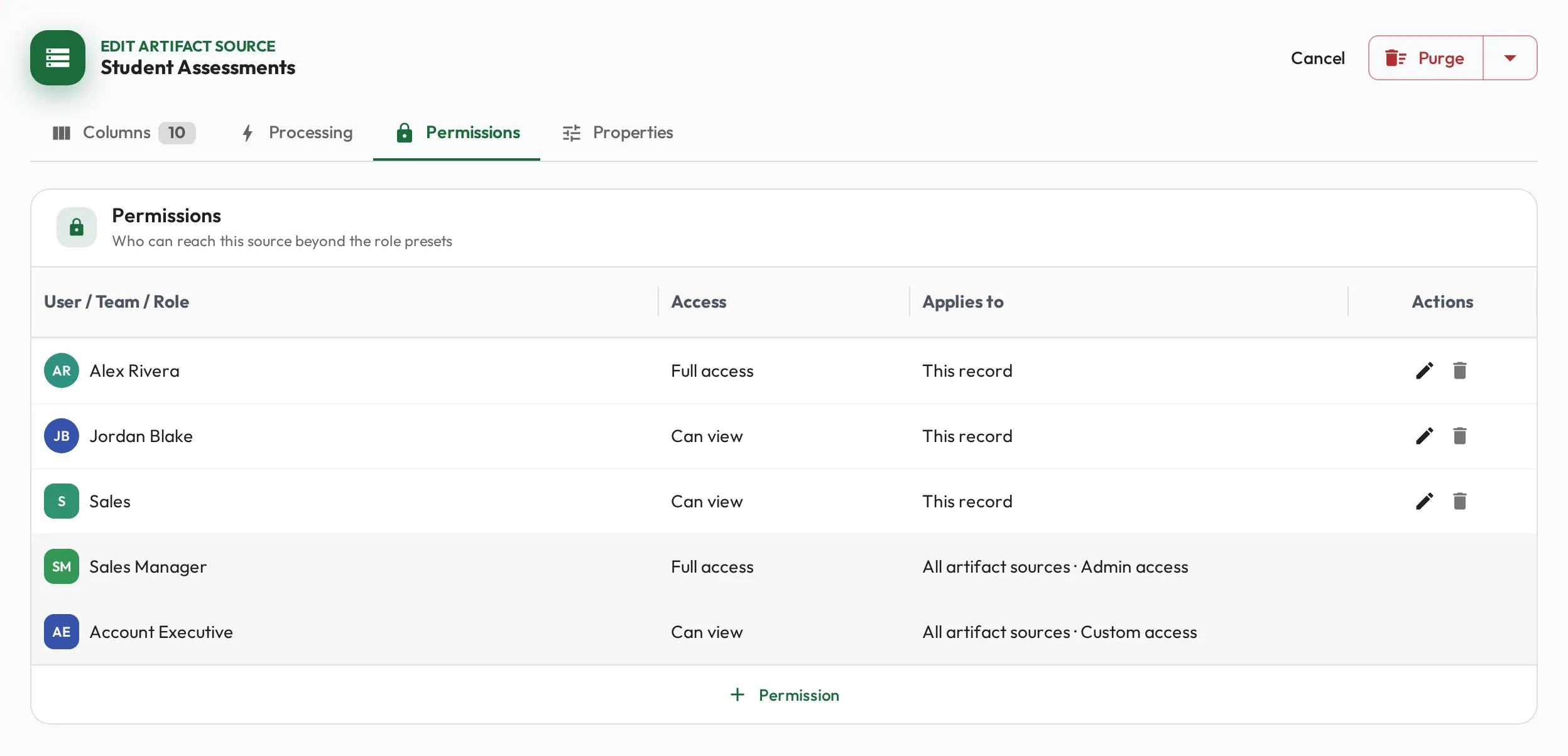
Some rows are shaded and offer no actions. Those come from a permission set rather than from this source, and they say so under Applies to. They explain why someone already has access even though nothing here was shared with them. To change one, change the person’s or role’s permission set.
Back on the source’s own page, the header shows how many people, teams, and roles were given access here. Hover it to see who.
Sharing a dashboard
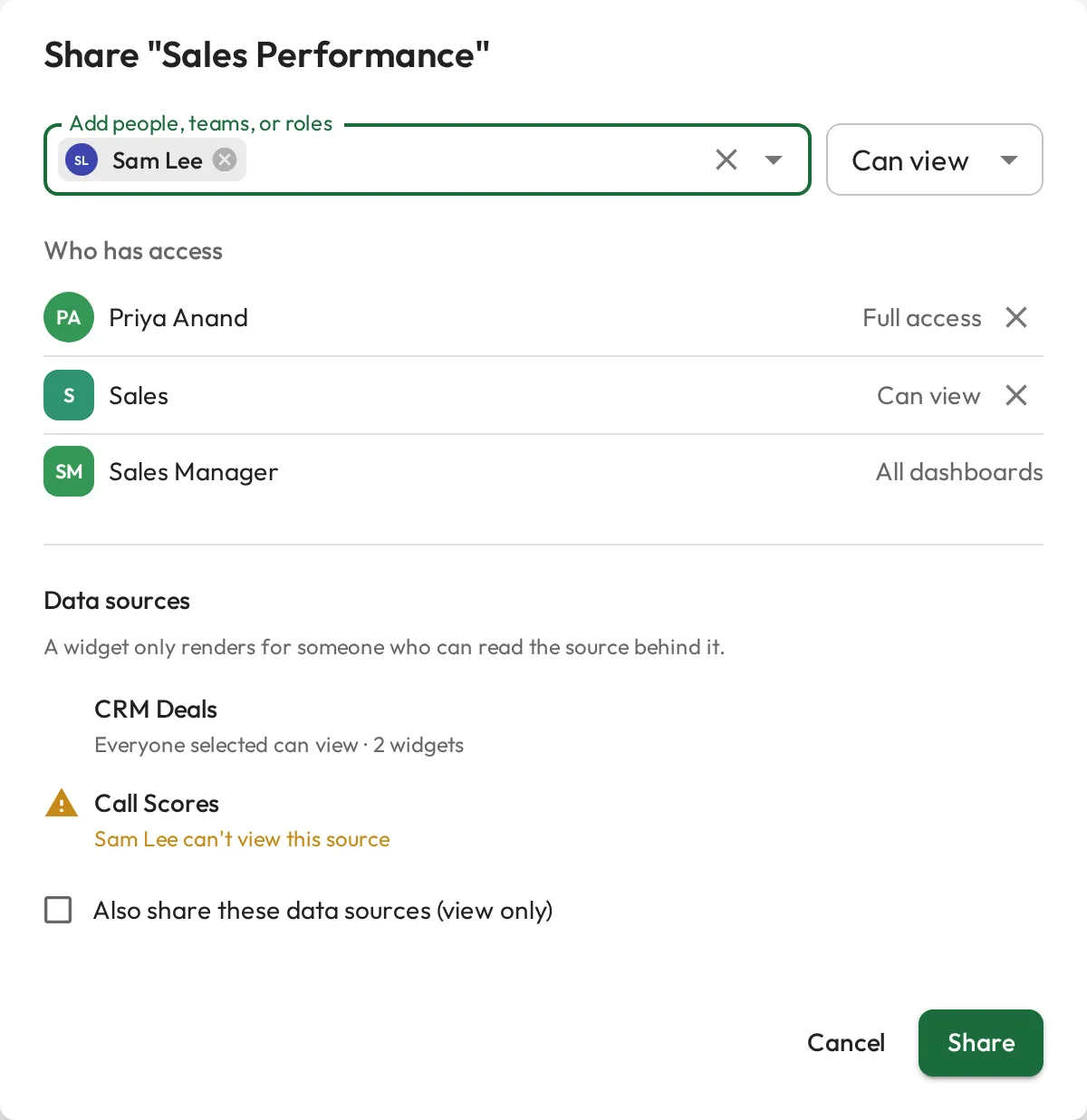
Section titled “Sharing a dashboard”Open a dashboard you have Full access to and select Share. Choose who to add, pick a level, and select Share.
A dashboard is only as visible as the data behind it, so once you have picked who to add, the dialog lists the data sources its widgets read and warns when those people cannot read one of them. When that happens you can tick Also share these data sources (view only) and Admire grants view access to the sources they were missing. The option appears only when you have Full access to at least one of those sources, and covers only those; a source you cannot share says so on its row.
Auditing what a role was given
Section titled “Auditing what a role was given”To see everything a role was shared, open the role, go to its Permissions tab, and read the Granted records card under the permissions grid. It lists each source and dashboard the role was given, with the level, and links to the record.
The card is read only. Access given on a record is changed on that record, so use its own Permissions tab or Share dialog to remove it.
When you can’t see the data
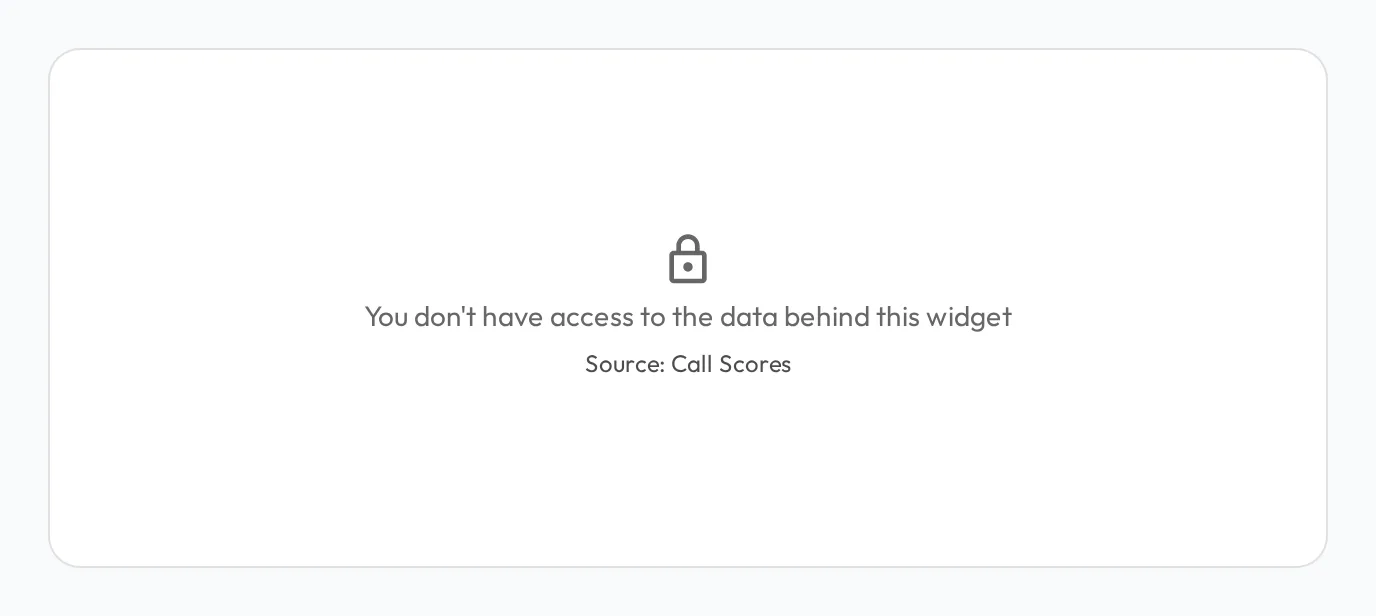
Section titled “When you can’t see the data”If a widget reads a source you cannot view, the tile says so instead of charting nothing, and names the source. Nothing is broken: the dashboard is simply smaller for you than for its author.
The same distinction shows up when you write a widget’s query. A table you cannot read is reported as an access problem. A table that does not exist anywhere in the organization is reported as a mistake in the query.