

Running a Meeting
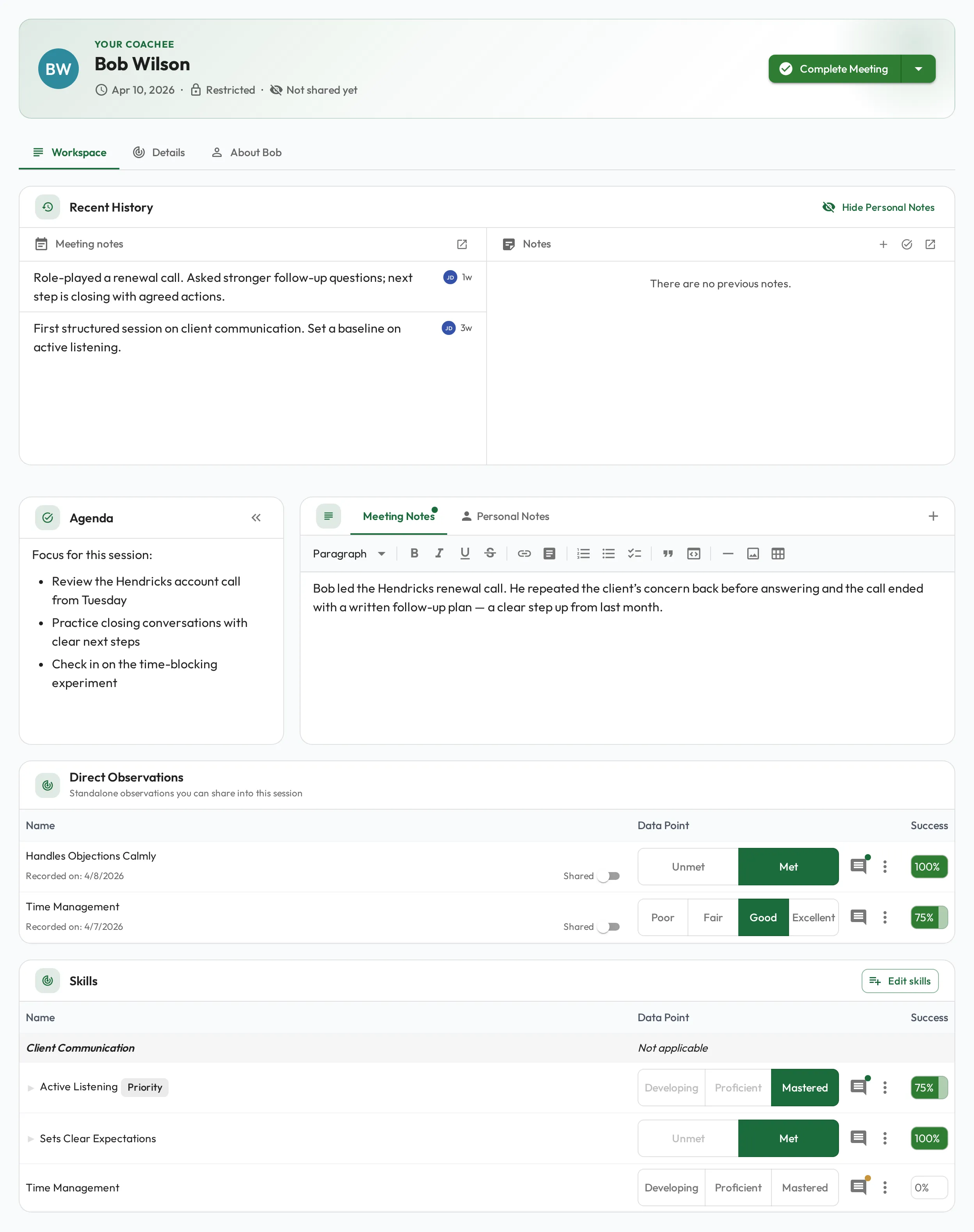
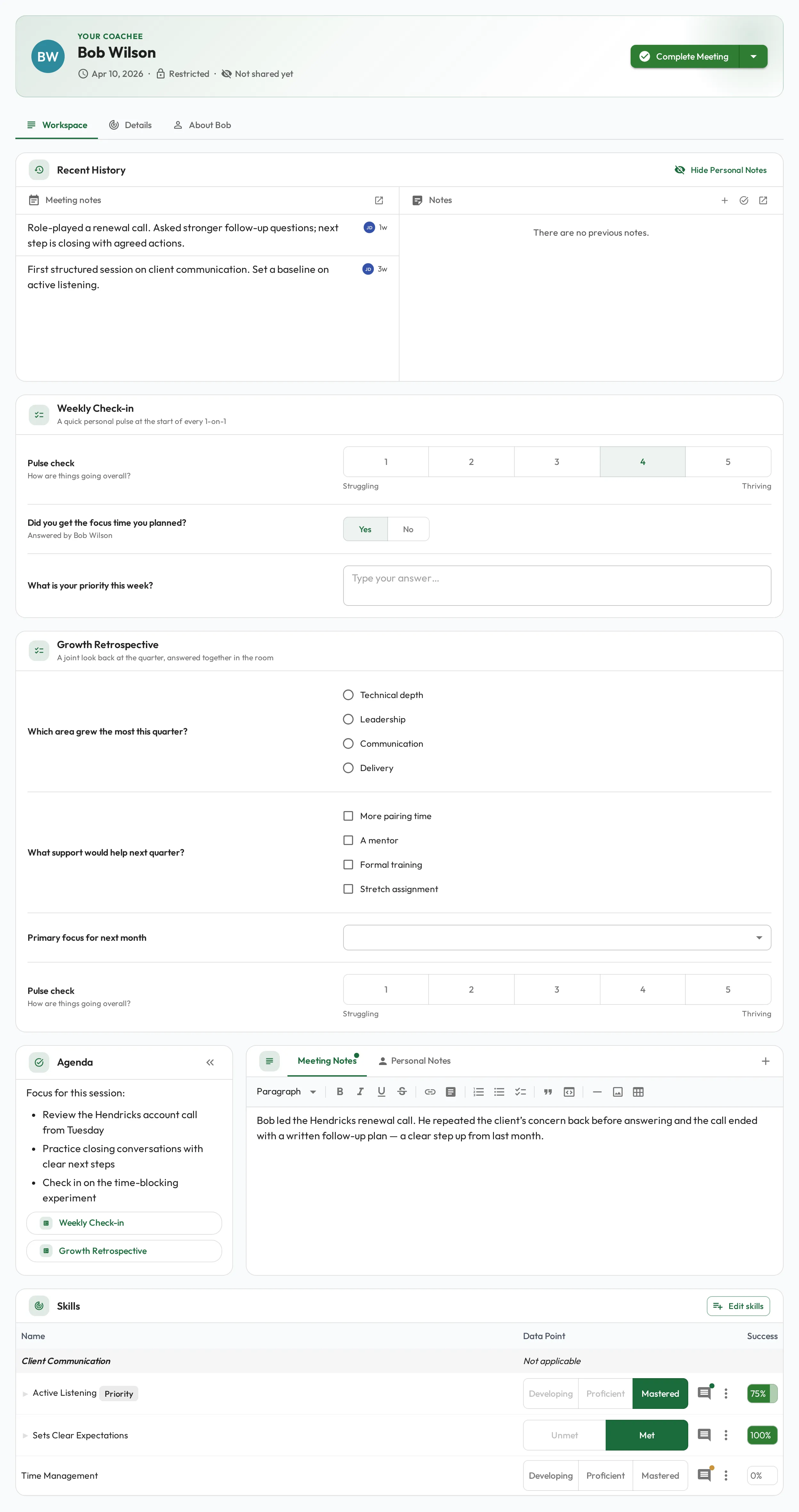
When a Meeting starts, Admire opens a focused workspace for the session: the person’s recent history across the top, the agenda and notes front and center, and the skills to coach further down.
Scoring skills
Section titled “Scoring skills”Scoring is the heart of a Meeting, but it’s flexible. The coach decides which skills to rate and how deeply, based on what actually came up.
Record an observation
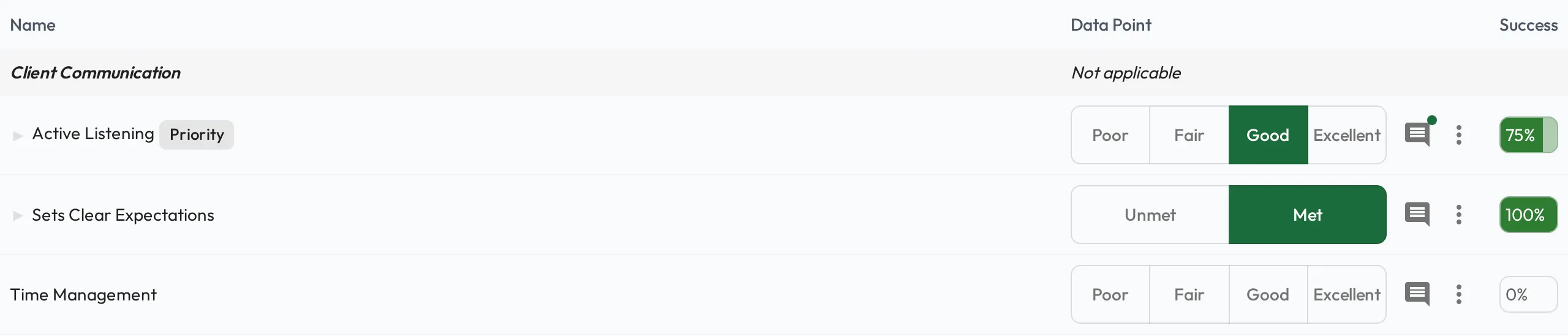
Section titled “Record an observation”For each skill assessed, record a score using its assessment type: a yes/no, a rating, or a set of trials. Scores build the person’s progress and count toward mastery.
Share drafted observations
Section titled “Share drafted observations”Observations don’t have to wait for a session. When someone demonstrates a skill in the moment, record a quick observation on the spot: from their profile, open the skill and score it, or simply tell your connected AI what you saw.
A quick observation starts as a draft (saved but not yet published), and every draft surfaces at the top of the person’s next Meeting. That makes the session the natural place to deliver the feedback: talk it through together, then flip the Shared toggle to publish it, or delete it if it was a mistake. Once shared, it counts toward progress and mastery like any other observation.

Take notes as you score
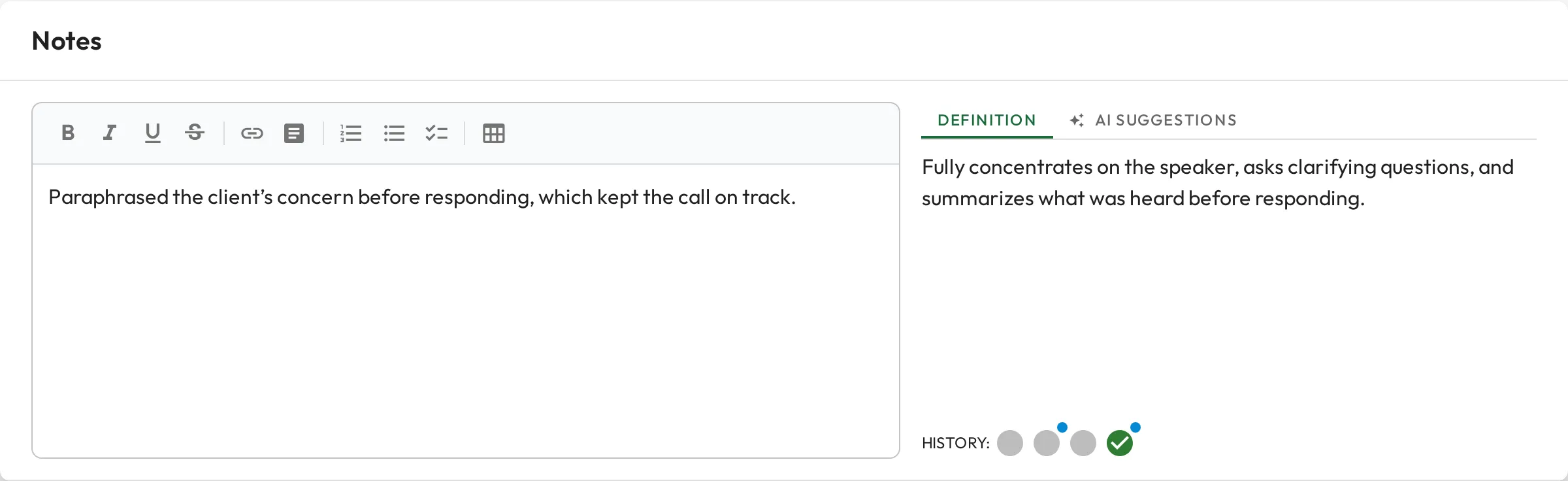
Section titled “Take notes as you score”Capture notes directly against a skill while it’s fresh, so the score carries the context behind it. The skill’s definition and past observations sit right beside the editor.
Get AI coaching help
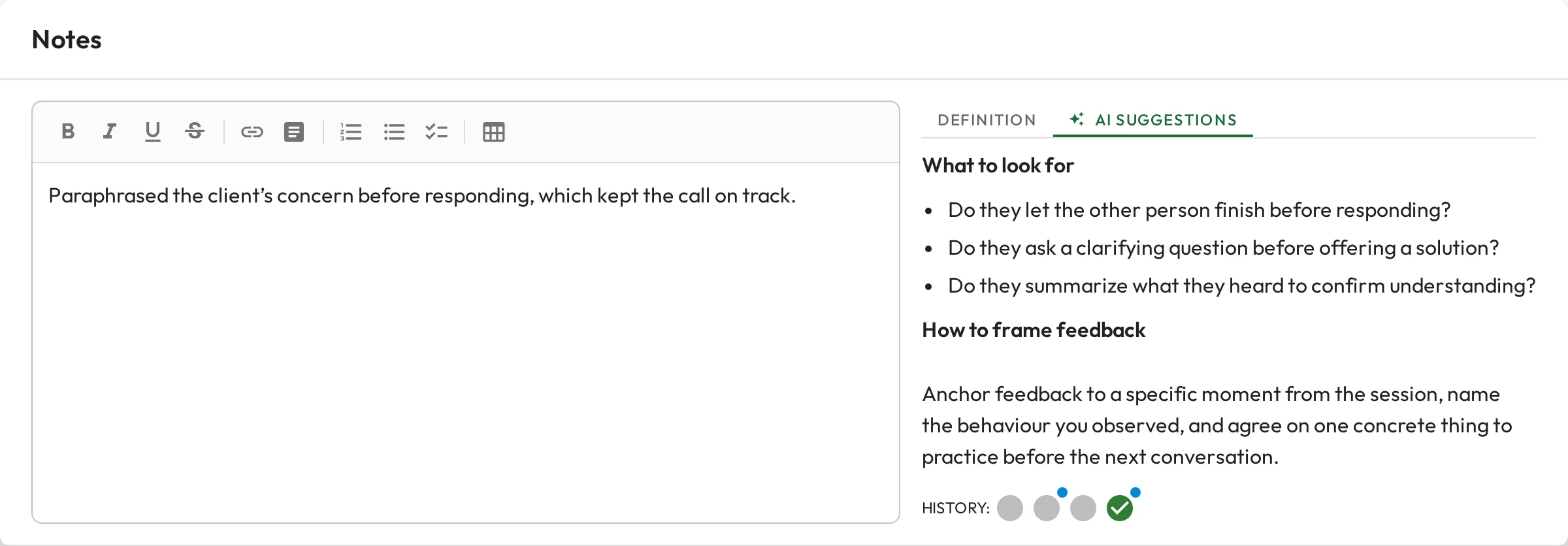
Section titled “Get AI coaching help”If your organization has set up AI Coaches, the same dialog offers in-the-moment coaching guidance while you assess: what to look for and how to frame feedback.
No one is required to assess everything: rate only what there was time to observe, and skills that are skipped are simply left untouched (see the overview).
Skills with child skills
Section titled “Skills with child skills”When a skill has child skills (for example behaviours beneath it), you can work at whichever level fits:
- Use the children as a checklist to guide your judgment of the parent skill, or
- assess the skill directly without scoring each child.
Scoring every behaviour is optional: the children are there to help, not to add work.
Notes and visibility
Section titled “Notes and visibility”Meetings support several kinds of notes, each with its own visibility, so you can be candid where you need to be and transparent where it helps.
| Note type | Written | Visible to |
|---|---|---|
| Agenda notes | Before the session | Everyone: shared so all come prepared |
| Meeting Notes | During or after | Shared when you choose to, during or after the Meeting |
| Coaching Notes | Any time | Anyone who can edit the Meeting: the assigned coach, anyone else who coaches them, admins, and the coachee too on a Collaborative Meeting |
| Personal Notes | Any time | Only you |
Share notes and data with Coachee sits on the Details tab and can be changed at any point, not only once the Meeting is done. Turn it on and the coachee sees your notes and each score as you record them, which suits a session you are working through together. Completing the Meeting shares the results either way, as long as the coach is the one completing it. Re-opening a Meeting from here leaves sharing as you set it.
Question sets
Section titled “Question sets”Notes carry a conversation well and compare badly. When you want the same few things asked at every session, a Meeting can also carry question sets: short groups of questions that record their answers as data, so a rating or a mood can be read as a trend across sessions instead of re-read one paragraph at a time.
A question set is placed in the Meeting’s agenda while the Meeting is being planned, and appears in the workspace above the agenda and notes. Both of you fill in the same shared answers, each one saving on its own, and an answer the other person gives shows up within a second or so. The workspace can’t add or remove question sets; choose Edit Meeting to change what it asks, even once it is under way.
Working together
Section titled “Working together”Both of you can have a Meeting open at once, and each side’s changes appear on the other within a few seconds. Whoever else is in it shows at the top, with an “is editing” chip on the card they are typing in. Personal Notes are yours alone, and never say where you are working.
Recent History
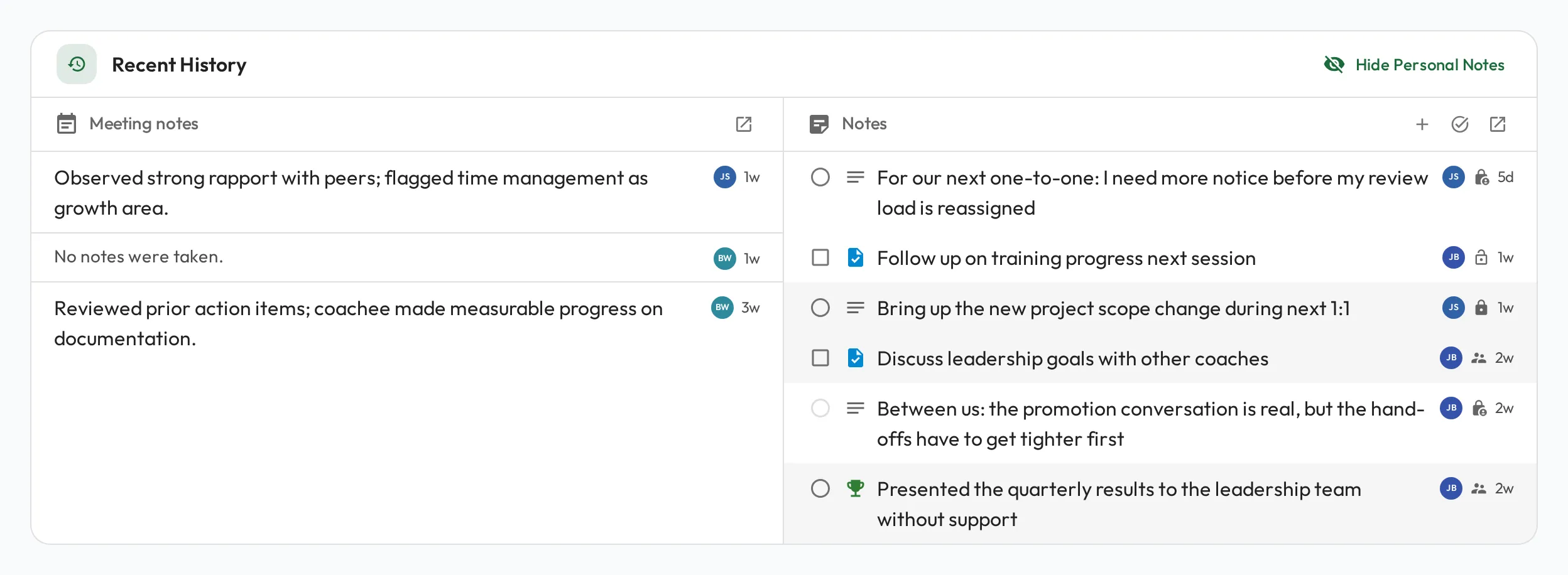
Section titled “Recent History”The session view keeps the person’s history one glance away, in two columns: Meeting notes from past sessions on the left, and notes, tasks, and wins on the right. On a phone the two columns become tabs.
Work the right column as the conversation covers each item:
- Tick it off. Complete a task or commitment, or mark a note or win as discussed. The row leaves the column unless you are showing done notes.
- Click a row to read it in full. Rows show the first couple of lines. One you wrote yourself opens ready to edit; the rest open read-only.
- Add a note with the + in the column header, without leaving the session. It starts on the person you are meeting, and you can switch the name on it to yourself or to anyone you coach or are coached by. It is greyed out when you are not one of the two people in the Meeting.
- Show done notes with the check icon beside the +, to bring back the ones already dealt with. If everything is done, the column offers the same button in place of the list.
- Click a past Meeting to open it in a new tab, so you never lose the live session.
Once the Meeting is done, the + and the tick-off controls grey out so the record stays as it was. If you are neither its coach nor its coachee, tick-off is also locked until you choose Force unlock. Reading is never locked.
Whose notes you see
Section titled “Whose notes you see”The right column always means the same thing: the notes on the person being coached, plus whatever the two people in the Meeting keep with each other.
| Who is looking | What the column shows |
|---|---|
| One of the two people in the Meeting | The coached person’s notes, your own private notes about the other, and anything just between you two. A note you share only with someone outside this Meeting stays out. |
| Anyone else | The coached person’s notes only. Your own private notes about them, and anything just between you and them, stay on their profile. The column says so at the top. |
Reading a row
Section titled “Reading a row”- The initials circle names whose record the note sits on, since the column covers both people. Hover it for the profile.
- The small icon beside it says who can see the note. Hover it for the full answer.
- A tinted row is one the person opposite cannot see, so you know before you say it out loud.
- Hide Personal Notes in the card header takes all of that off screen while you share: your own private lines, and notes shared only with coaches. Notes both of you can already see stay put.
The lifecycle
Section titled “The lifecycle”A Meeting moves through a simple flow (planned, run, then completed) and can be cancelled along the way or reopened after it’s done:
flowchart LR
  Pending -- "begin session" --> Started
  Started -- "complete" --> Done
  Done -- "reopen" --> Pending
  Pending --> Cancelled
  Started --> Cancelled
- Pending: planned but not yet started.
- Started: in progress; you’re capturing observations and notes.
- Done: completed. Signing it off is a separate, optional step.
Completing and reopening
Section titled “Completing and reopening”Completing a Meeting marks it as done and locks in the observations you recorded. Completed observations feed the person’s progress and your dashboards.
Signing off
Section titled “Signing off”Once a Meeting is done, the coach (and optionally the person) can add a digital signature to confirm the session took place and the record is agreed. Signing is optional and leaves the Meeting’s status as it is. The signatures stay on the record.
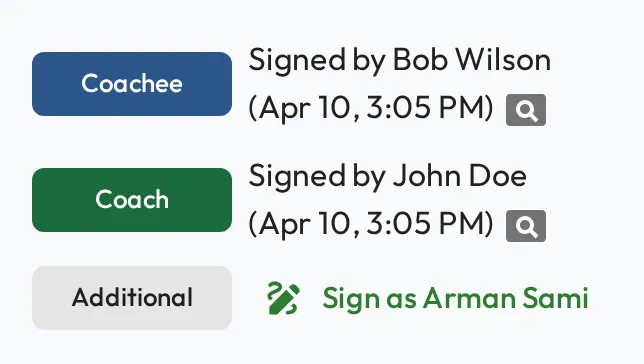
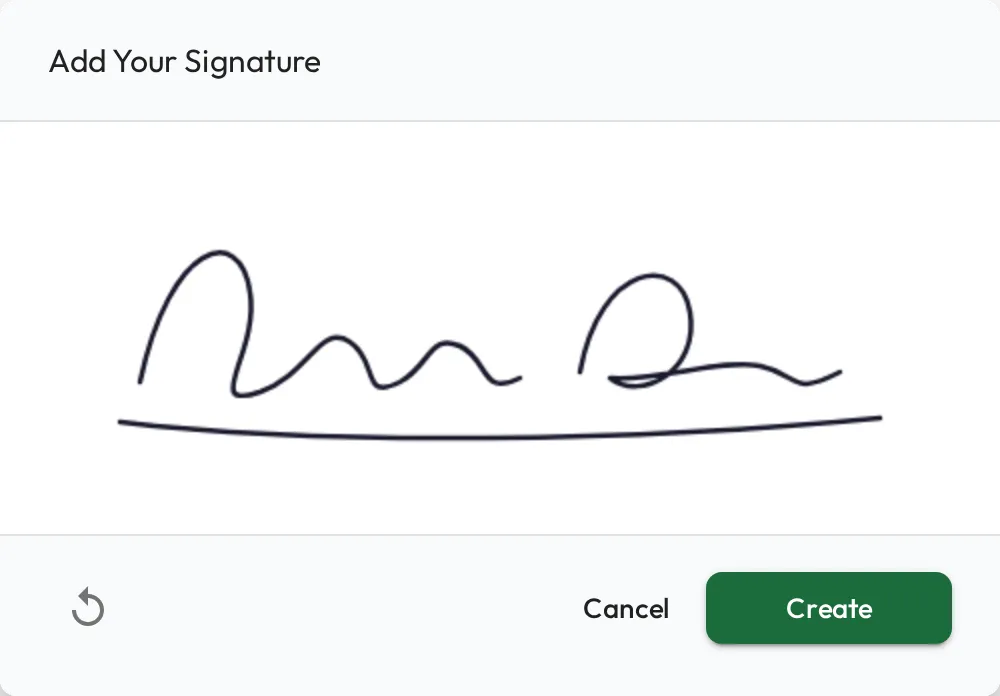
Signatures are drawn directly on a signature pad, so sign-off works the same on a laptop, tablet, or phone.
Reopening
Section titled “Reopening”If you need to change a completed Meeting, to fix a score, add a note, or capture something you missed, you can reopen it. Complete it again, then sign off.